Copy Text from Images on Mac (OCR)
Image to text.Ready to paste.
A photographed itinerary, a screenshot of an error, a slide in a video call. Select the area, and the words are on your clipboard a moment later.
Built-in OCR runs locally on your Mac with Apple Vision.
⌘ ⇧ 2 Capture Text (OCR)
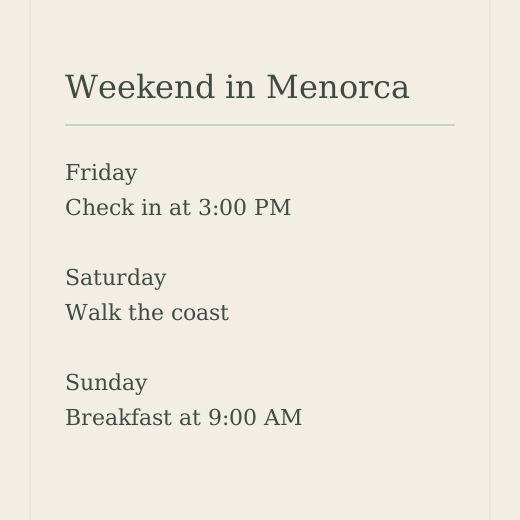
Text you can use, from anywhere on screen.
On-device recognition
Text is recognized on your Mac with Apple Vision. Nothing is uploaded, and it works without an internet connection.
Straight to the clipboard
Recognized text is copied as soon as it is ready. Press ⌘V wherever you want it. An optional notification shows what was copied.
Links and QR codes
Flicopy spots web links in recognized text and offers to open them, and reads text-based QR codes in the same selection.
Vertical and CJK text
Vertical Chinese, Japanese and Korean text is detected and put back into reading order.
Works on anything visible
Images, PDFs, videos, apps that block copying and text inside screenshots. If you can see it, you can select it.
Also in the editor
Use Extract Text in the screenshot editor to pull the text out of an image you already captured.
Copy text from an image.
- Press ⌘ ⇧ 2, or select an area in All-in-One and press O.
- Drag over the text you want. Progress appears on the same display.
- When Flicopy says the text has been copied, press ⌘ V to paste it anywhere.
Questions about text recognition.
Is OCR free in Flicopy?
Text recognition is part of Flicopy, with no per-use limits or separate subscription. It runs locally, so there is no usage cost.
Which languages are supported?
Flicopy uses Apple Vision’s on-device recognition, which supports the languages that macOS provides, including English, Chinese, Japanese, Korean and many European languages.
Does it keep line breaks?
Flicopy keeps the lines it recognizes in reading order, including vertical text, so paragraphs and lists paste in a sensible order.
Works well with.
Quick Panel & clipboard history
Everything you copy and capture, at hand in any app when you press Option twice.
All-in-One capture
Area, window, full screen, text and recording from one toolbar.
Screenshot editor
Arrows, text, blur, backgrounds and mockups.
Step-by-step guides
- How to see clipboard history on Mac
- How to copy from Mac and paste on iPhone
- How to copy text from an image on Mac
- How to give ChatGPT or Claude context from your Mac
- Rewind alternative for Mac: what to use now that Rewind is gone
How Flicopy compares
It all lands in one place.
Whatever you capture, record or copy with Flicopy stays in your working memory, with the app and page it came from. Press Option twice in any app and it’s at hand.

Try text recognition
on your Mac.
Download for MacFree for 7 days. No credit card required.