Remove Image Backgrounds on Mac
Lift the subject.Leave the background.
Turn a photo into a transparent cutout for a slide, a moodboard or your next design. Select the area around the subject and Flicopy does the rest.
Subject extraction works locally on macOS 14 or later.
⌘ ⇧ 1 Capture Subject
Requires macOS 14 or later.
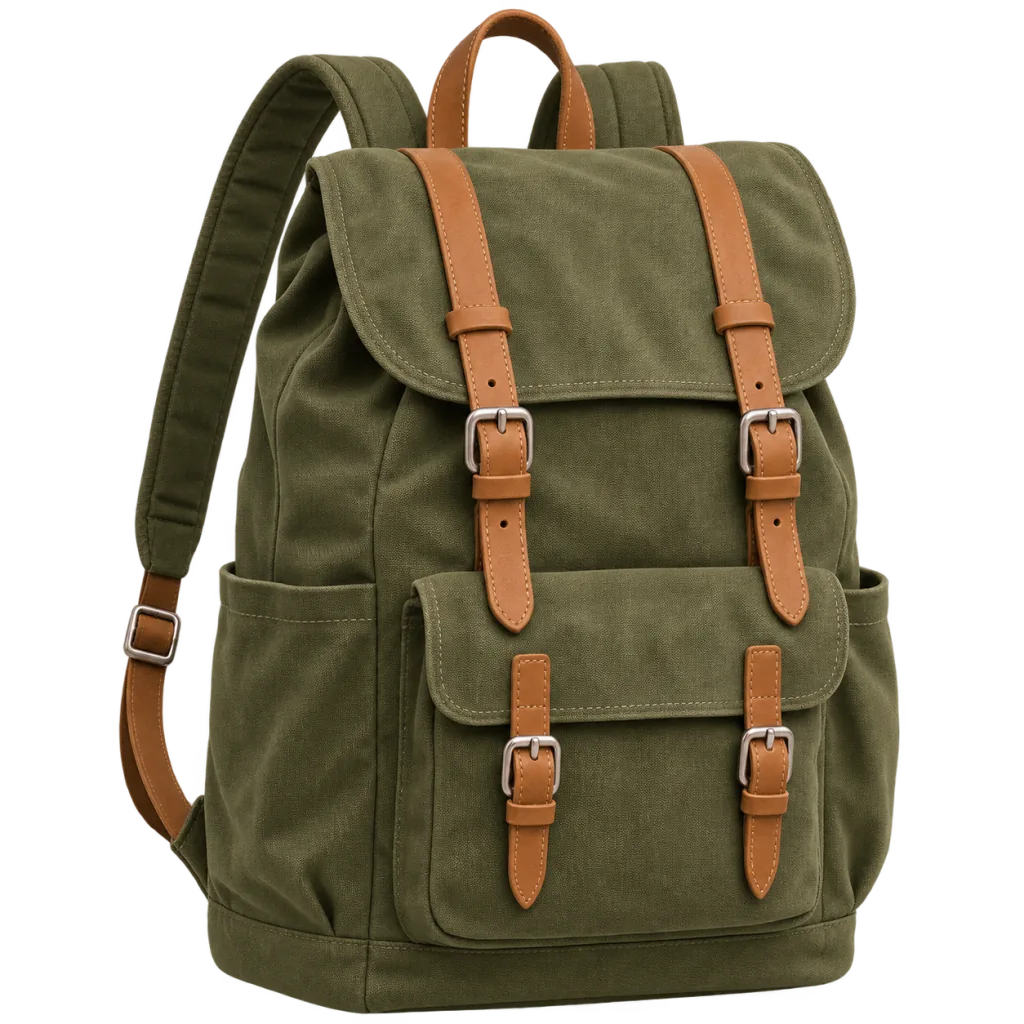
Clean cutouts in a second.
From anywhere on screen
Capture a subject straight from a web page, a photo, a video frame or a document. No need to save the image first.
Local and private
The subject is detected on your Mac. The image is never uploaded.
Transparent result
The cutout keeps a transparent background, ready for Keynote, Figma, Pages or a chat.
Auto-crop
Flicopy trims the empty space around the subject when it is safe to do so. Turn it off if you want to keep the original frame.
In the editor too
Use Remove Background on any image in the screenshot editor, and click again to restore it.
Remove a background.
- Press ⌘ ⇧ 1.
- Drag a selection around the subject. A tighter selection gives a better result.
- The cutout is copied with a transparent background. Paste it, or open it in the editor.
Questions about background removal.
Which macOS version do I need?
macOS Sonoma 14 or later, the same as the rest of Flicopy. Background removal runs locally on both Apple silicon and Intel Macs.
Why did it say no subject was detected?
Try a tighter selection around a single clear subject. Flat graphics and busy scenes without an obvious foreground are harder to separate.
It all lands in one place.
Whatever you capture, record or copy with Flicopy stays in your working memory, with the app and page it came from. Press Option twice in any app and it’s at hand.

Try background removal
on your Mac.
Download for MacFree for 7 days. No credit card required.