 Ticket 9142 · Deleted a screenshot




Saved replies, one keystroke away
Keep your best answers in a category and rename them so they are easy to find. Press Option twice in the help desk, then ⌘1–9 to paste.
Quick PanelAnswer faster, show instead of tell.
Support is the same twenty answers and a screenshot that explains the twenty-first. Flicopy keeps your replies and steps at hand, blurs what should stay private, and turns a messy thread into context your AI can draft from.
Paste into Zendesk, Intercom, Help Scout, Front, Gmail, Slack and your AI.
Keep your best answers in a category and rename them so they are easy to find. Press Option twice in the help desk, then ⌘1–9 to paste.
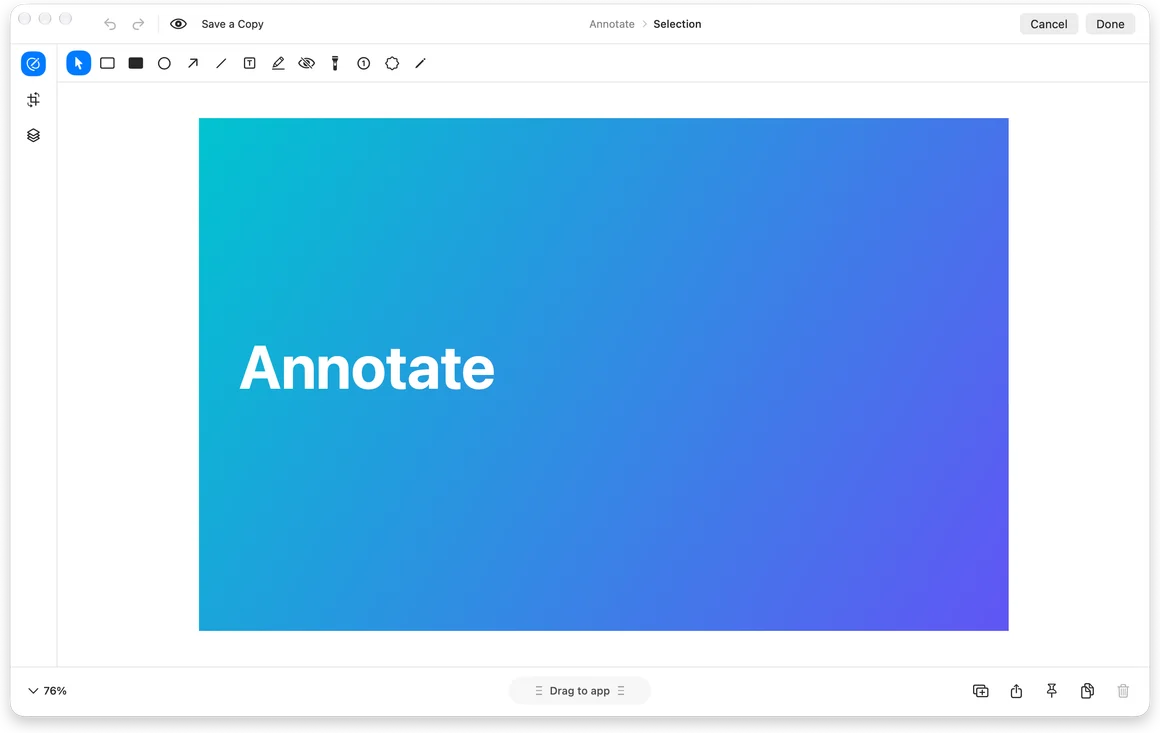
Quick PanelCapture each screen, add numbered counters and arrows, and send one clear image instead of a paragraph of directions.
Screenshot editorAuto Redact finds sensitive text on your Mac and covers it with blur you can still adjust, before the screenshot goes into a ticket or a bug report.
Auto RedactRecognize the text in the screenshot a customer sent, with the error code and the order number, and paste it into your search.
Text recognitionRecord the issue with clicks highlighted and keystrokes on screen, so the engineer sees it once and does not need to ask.
Screen recordingCopy the account, the plan and the summary in order with the Tray, then paste them into the escalation form one ⌘V at a time.
The TrayPaste the customer’s message, their screenshot and the help article together, then ask your AI for a reply in your team’s tone. You review and send.
Redact first: what you paste is what the AI sees, and Flicopy sends nothing on its own.
Items in a category stay until you delete them. Everything else clears on the schedule you choose.
Copy a reply once and add it to a category. It stays until you delete it. Press Option twice in any app, pick it, and press Return or ⌘1–9 to paste.
No. Sensitive text is found on your Mac, and the redactions are normal blur annotations you can move or remove before saving.
Yes. Items copied from password managers are not kept.
Everything you copy and capture, at hand in any app when you press Option twice.
Arrows, text, blur, backgrounds and mockups.
Copy text from any image or screen, locally.
Video or GIF with audio, camera, clicks and keystrokes.

7 days free on Mac, no credit card. Free download on the App Store.
 Claude