 Onboarding — Figma





Capture interface by element
Hover a card, a menu or a button and click. The screenshot fits it exactly, with hover states and open menus still showing. Shift-click to pin it above your canvas as a reference.
Element captureReferences, colors, feedback. One place, one shortcut.
Designers collect all day: a pattern from another app, a color from a photo, a frame for feedback, a cutout for the deck. Flicopy captures each one cleanly and keeps it where you can drag it into Figma, Slack or your AI.
Drag into Figma, Sketch, Keynote, Slack, Linear or any app that accepts images.
Hover a card, a menu or a button and click. The screenshot fits it exactly, with hover states and open menus still showing. Shift-click to pin it above your canvas as a reference.
Element capturePoint at any pixel and copy it as HEX, RGB, HSL, HSB, CMYK, OKLCH or SwiftUI code. Recent colors stay in the picker, so the palette from this morning is still there.
Color pickerRemove the background from a product shot or a portrait on your Mac and paste the subject on transparency, ready for a mockup.
Background removalPut references in a category per project, colored so you can spot it. Drag a card out and Flicopy drops a copy, so the original never moves.
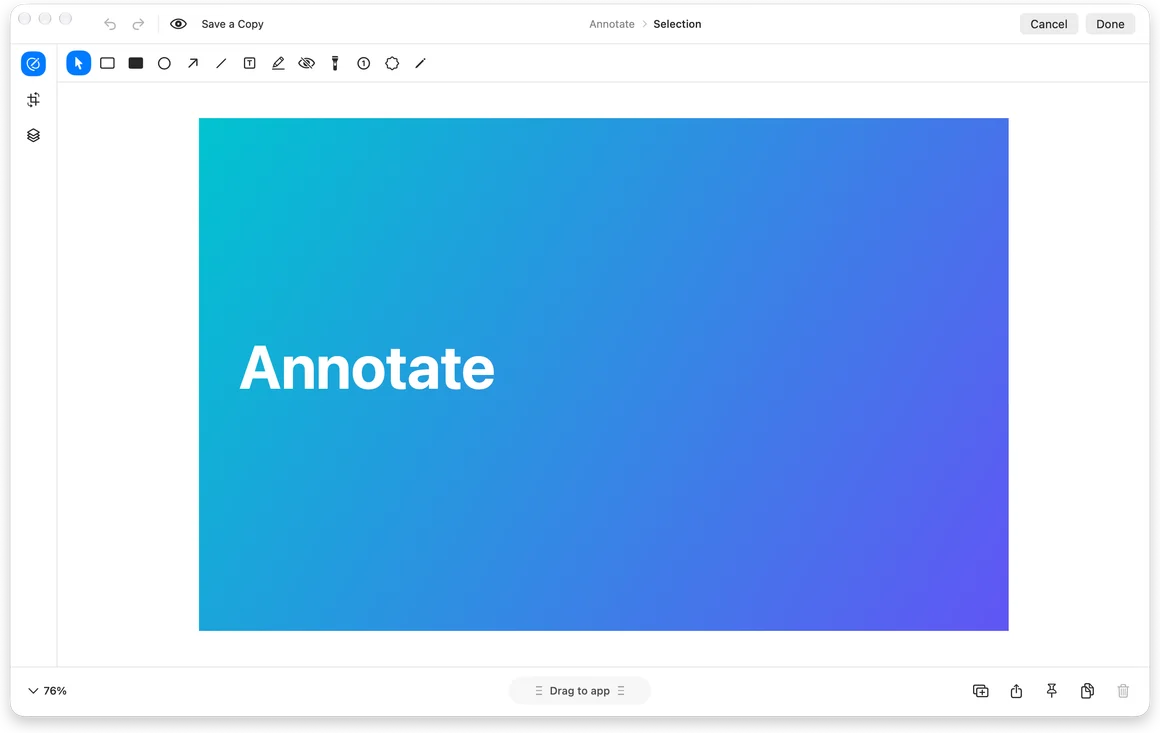
CategoriesArrows, numbered steps, highlights and blur in one editor, with Auto Redact for customer data. Add a background, padding and a 3D tilt for a post or a case study.
Screenshot editorRecord the flow with your voice and highlighted clicks, then add zooms that follow your pointer before you send it.
Video editorPaste three screens and a note into ChatGPT or Claude and ask what breaks the hierarchy. Give a coding agent the element screenshot and the exact color values, and it builds from what you see instead of a description.
Picked colors are text, so they paste cleanly into a prompt or a design token file.
Items in a category stay until you delete them. Everything else clears on the schedule you choose.
HEX, RGB, HSL, HSB, CMYK, OKLCH and SwiftUI code. With Copy on pick turned on, the value is on your clipboard as soon as you click.
Yes. Drag a card from the Quick Panel or the floating preview into Figma or any app that accepts images. Flicopy drags a copy, so the original file stays where it is.
No. The subject is detected on your Mac, and the image is never uploaded. It needs macOS 14 or later, like the rest of Flicopy.
Hover a card, button or window and capture exactly that.
Pick any pixel and copy it as HEX, RGB, OKLCH and more.
Lift the subject out of any image, locally.
Arrows, text, blur, backgrounds and mockups.

7 days free on Mac, no credit card. Free download on the App Store.
 ChatGPT